
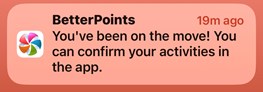
Manually confirming your activities in the app is as easy as 1-2-3. The app will push you a notification to let you know that there is an activity on the home tab that needs confirming after it has been validated in our system.
1. Tap on this message to be taken to the home tab.
2. Your activities will appear on the home tab in orange to let you know they have yet to be verified. To only see your activities listed in the app, press the walking figure icon, below the weekly stats.
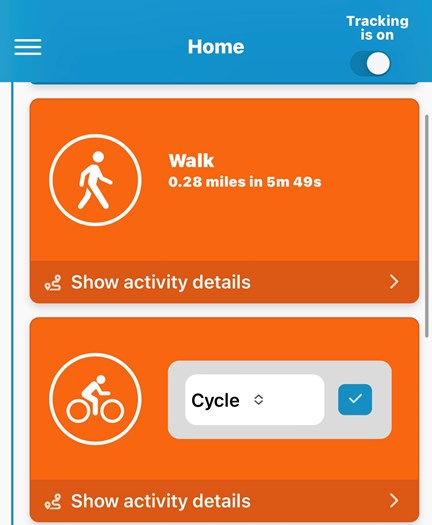
3. Change the mode if you need to and then tap the blue checkbox to verify.
We've made it possible for you to change the mode if the app has not determined it correctly. The app verifies mapping, speed, movement and other parameters for your journey, and although it's fairly accurate, there are journeys that might verify as another type. If you're cycling up a hill on the road for instance, the app might sometimes think you're running.
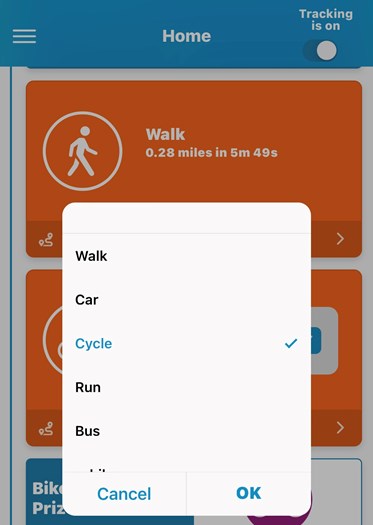
Note: If you do need to change the mode, you can use the drop down menu to do so. Please keep in mind that until the app reverifies the type, you might still see the original mode icon in processing.
Once the activity is processed, your correct type will show along with new metrics.
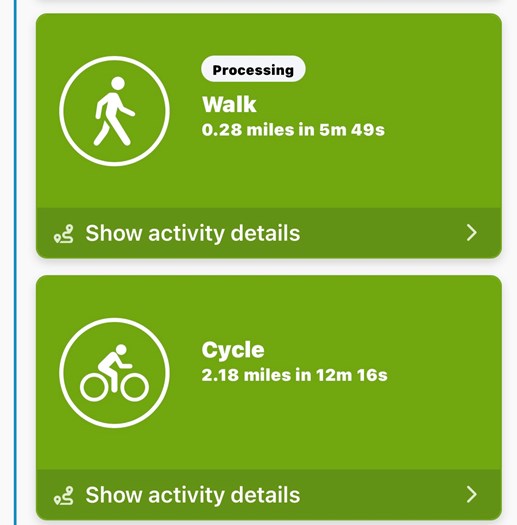
All done! The app will now award your points, tickets or other reward, as well as add your minutes travelled actively and other metrics to your weekly totals and historical data. You can find this by tapping on the metrics cards beneath the date on the home tab. To check your points and ticket totals - tap the points or tickets icons at the top of the Home tab.
You have until midnight to check your activities and make any changes if needed, otherwise the app will auto-confirm what it thinks you were doing after this - and apply any rewards.